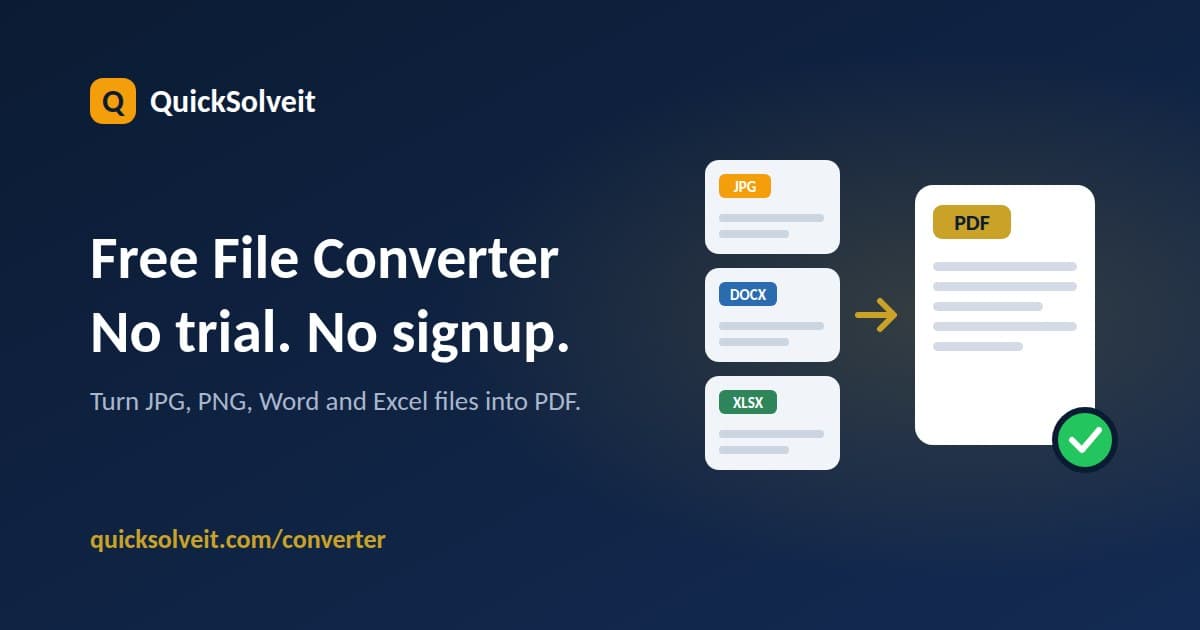
If you searched for a "file converter free trial" in the US, you probably expect a countdown timer, a signup form, and a card on file. With QuickSolveIt's File Converter, none of that applies: it's a free tool you can open and use right now, from any browser. This guide shows what it converts, how to try it in four steps, and when a paid tool is the better choice.
Do You Need a Free Trial?
Many paid PDF and document suites advertise a free trial, which often means creating an account, adding payment details, or working within a time limit. A trial makes sense for software with a lot of features. For a quick job like turning a résumé or a photo into a PDF, it's usually more than you need.
QuickSolveIt's converter has no trial period to start or cancel. There's no signup, and you can open it in a laptop, desktop, or phone browser without installing anything.
What You Can Convert Right Now
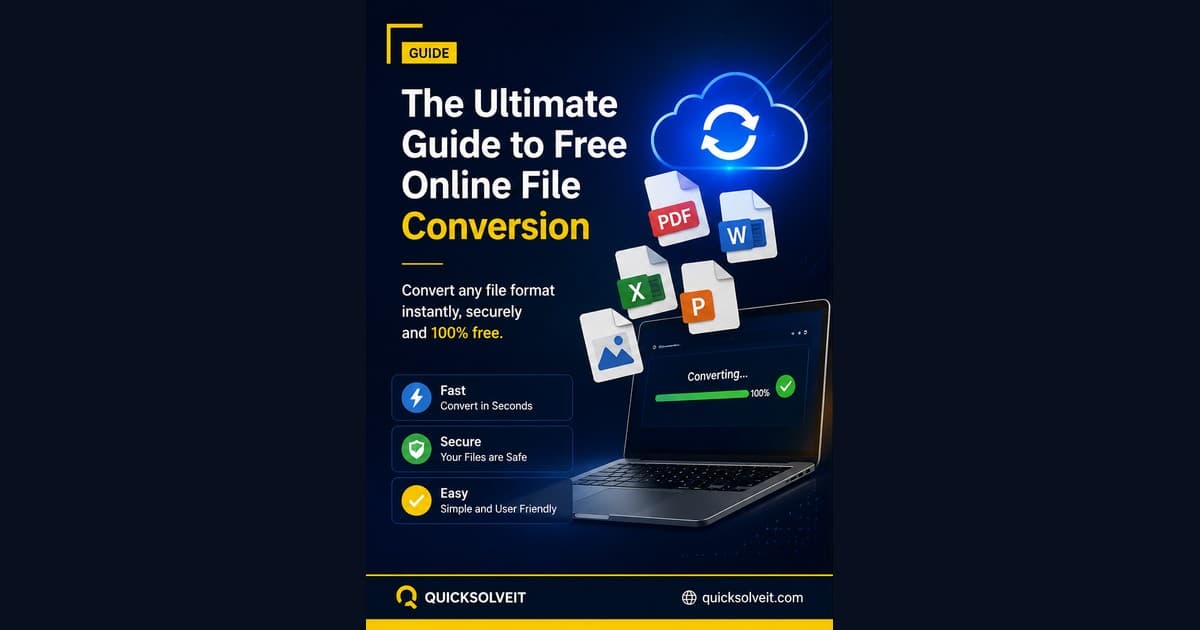
The converter currently turns these file types into PDF:
- Images: JPG and PNG to PDF
- Spreadsheets: Excel (.xlsx) to PDF
- Word documents: .doc and .docx to PDF, including password-protected files
PDF is the only output format at the moment. For Word files, the tool works best up to about 15 pages (4MB).
How to Try the File Converter in 4 Steps
- Open the tool. Go to the QuickSolveIt File Converter.
- Pick your source file type. Under "Source File," choose JPG Image, PNG Image, Word, or Excel.
- Choose your file. "Convert To" is already set to PDF, so click "Select File" and pick the document from your device.
- Convert and download. Click "Start Convert," then save the finished PDF.
That's the whole process: no account, no card, nothing to cancel.
Everyday Ways People Use It in the US
- Job applications: Save your résumé from Word as a PDF so the layout looks the same on every device.
- Receipts and paperwork: Turn phone photos (JPG or PNG) of receipts or signed forms into PDFs for expense reports, school paperwork, or insurance claims.
- Client invoices and budgets: Convert an Excel sheet to PDF before emailing it, so the numbers and formatting stay exactly as you sent them.
- Freelance work: If you work for US clients, PDF is a format most of them can open without extra software.
Free Tool vs. Paid Software
Being upfront about limits helps you choose. QuickSolveIt converts JPG, PNG, Word, and Excel files to PDF. Right now it doesn't convert PDFs into other formats or edit them. If you need those features regularly, or you convert hundreds of files, the free trial of a paid desktop suite may be worth testing. If you just need a clean PDF now and then, a free browser tool is faster to start with.
Tips for Better Results
- Photograph documents flat and well lit. A sharp, straight-on JPG or PNG gives a much more readable PDF.
- Keep Word files short. If a document runs past roughly 15 pages or 4MB, split it into parts before converting.
- Protect sensitive files. Avoid uploading highly confidential documents (Social Security numbers, tax returns, IDs) to any online service without reading its privacy policy first. You can read ours here.
Try It Now
You don't need a trial to find out whether it works for you. Open the free File Converter, convert one file, and check the result. For more on choosing a converter and handling large files, read our Ultimate Guide to Free Online File Conversion in 2026.